
Knowing how to check a laptop’s specifications in Windows is essential when buying a used laptop, before upgrading the RAM or SSD, when selling a laptop, or when verifying that applications—such as design software and games—will run properly. You don’t need to disassemble the laptop or install any additional software. Windows already provides several built-in tools that display the full specifications.
Here are four ways to check your laptop’s specs, from the quickest to the most comprehensive.
Method 1: Through Settings (fastest)
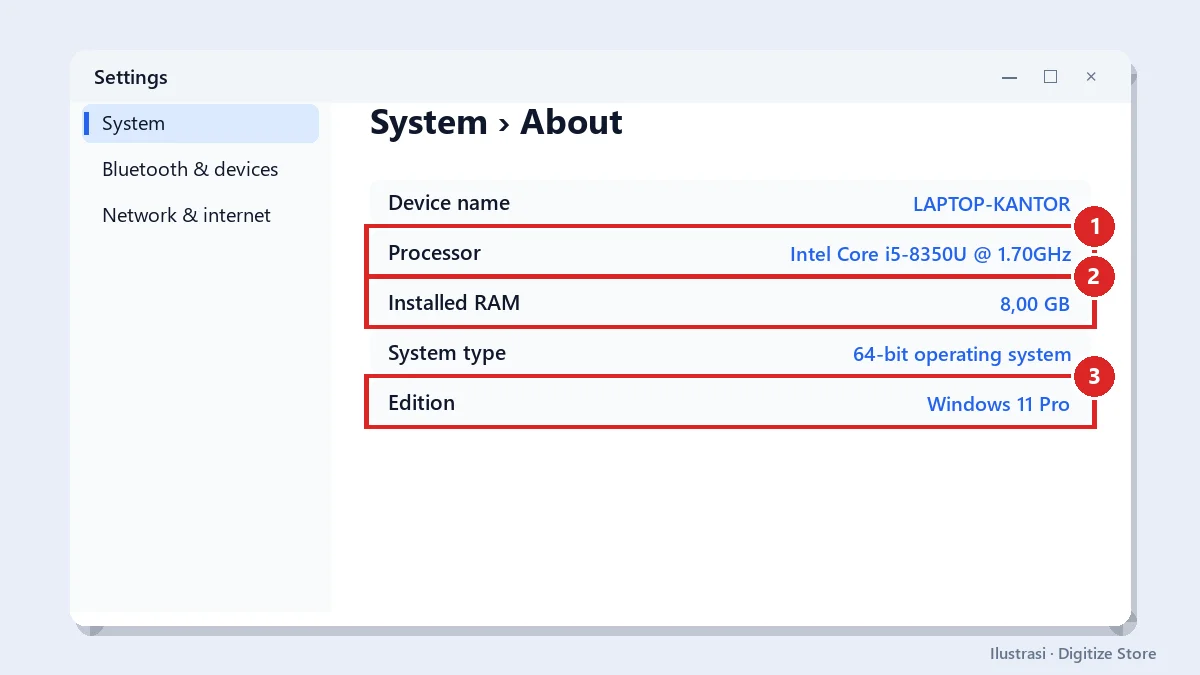
Open Settings → System → About, or press Windows + Pause/Break. Here you’ll see:
- Processor: the processor’s name and model.
- Installed RAM: RAM capacity.
- System type: 32-bit or 64-bit.
- Edition: Windows Home or Pro.
Method 2: via Task Manager (most informative)
Press Ctrl + Shift + Esc, then open the Performance tab:
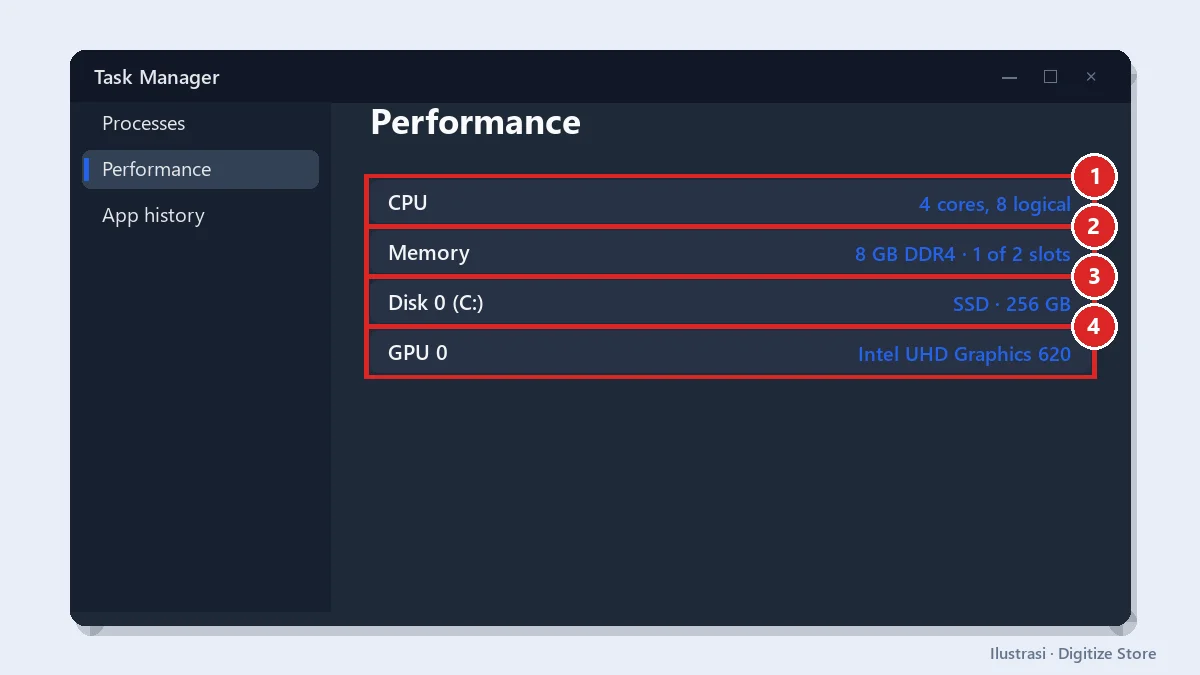
- CPU: processor name, number of cores and threads, and speed.
- Memory: total RAM, type (DDR4/DDR5), speed, and number of slots in use—for example, 1 of 2, which means you can still add more.
- Disk: storage type (SSD or HDD) and capacity.
- GPU: integrated graphics (Intel UHD, AMD Radeon) or discrete graphics (NVIDIA GeForce).
Memory slot information is very useful before upgrading. Find out how much RAM your laptop needs.
Method 3: dxdiag and msinfo32 (most comprehensive)
Press Windows + R, then type one of the following commands:
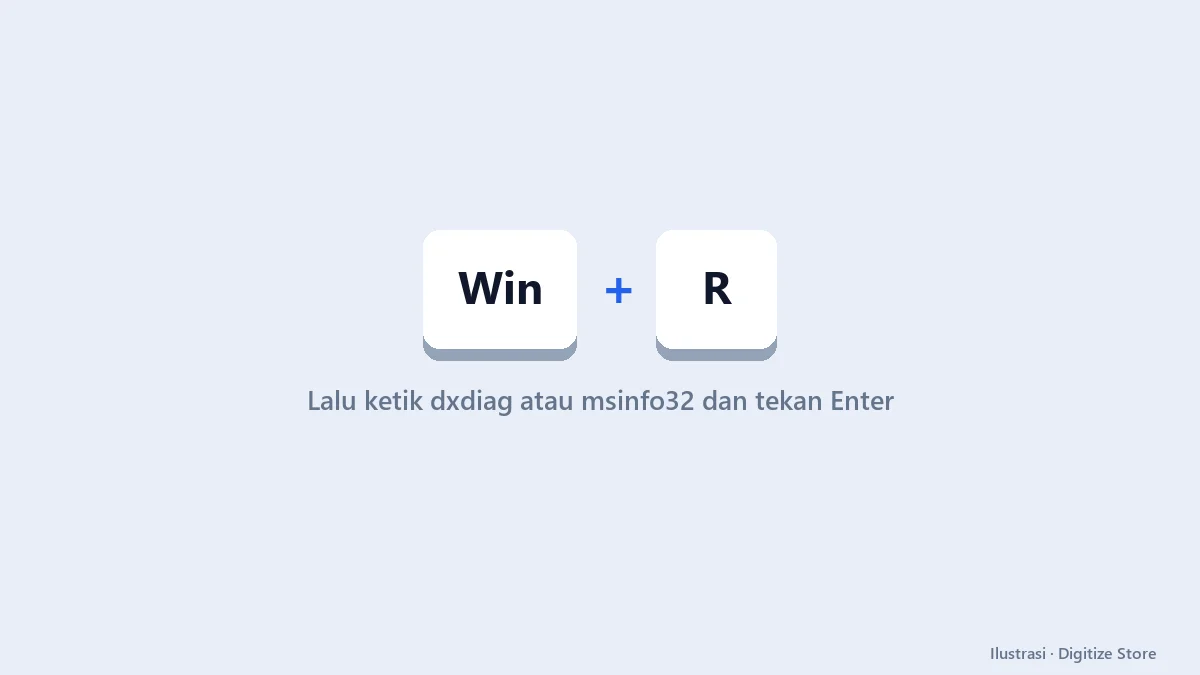
dxdiag: displays a system summary, DirectX version, and details about the graphics card and video memory on the Display tab. Ideal for checking gaming capabilities.msinfo32: Displays very comprehensive information, including the laptop model, BIOS version, BIOS mode (UEFI/Legacy), and a list of components.
Method 4: Check the serial number and model
Open Command Prompt or PowerShell, then run:
wmic bios get serialnumberOn the latest versions of Windows that no longer include wmic, use PowerShell:
Get-CimInstance Win32_BIOS | Select-Object SerialNumberThe serial number is also printed on a sticker on the bottom of the laptop. Use this number to check warranty status and original specifications on the manufacturer’s website.
How to identify the processor generation
The processor name indicates more than just “Core i5” or “Core i7.”
| Example names | Generation | Description |
|---|---|---|
| Core i5-4300U | 4 | It’s been a while, but it’s still sufficient for light tasks |
| Core i5-8350U | 8 | Still comfortable for office work and college |
| Core i5-1135G7 | 11 | More powerful integrated graphics |
| Core i5-1240P | 12 | Hybrid core, highly responsive |
| Ryzen 5 5500U | 5000 | Equivalent to Intel’s 10th–11th generations |
The suffix matters too: U is power-efficient, H/HX is high-performance, and G offers better graphics. An 8th-gen Core i5 is significantly more powerful than a 4th-gen Core i5.
How to check if you have an SSD or HDD
In addition to Task Manager, open Defragment and Optimize Drives from the Start menu. The Media type column displays Solid-state drive or “Hard disk drive.” Laptops with HDDs feel much slower. Consider upgrading to an SSD and also check the health of both the SSD and HDD.
Checklist for buying a used laptop
- Verify that the processor, RAM, and storage match what’s listed in the ad.
- Make sure the storage is an SSD, not an HDD masquerading as an SSD.
- Check the battery health by
powercfg /batteryreport. See how to check your laptop’s battery health. - Check the Windows activation status in Settings → System → Activation.
- Test all ports, the keyboard, the camera, and Wi-Fi.
A complete guide is available in “How to Choose a Good Used Laptop.”
Minimum specifications for general use
Once you know the laptop’s specifications, compare them to your needs:
| Requirements | Processor | RAM | Storage |
|---|---|---|---|
| Office, school, web browsing | Core i3/Ryzen 3 8th Gen or later | 8 GB | 256 GB SSD |
| College and multitasking | Core i5/Ryzen 5 8th Gen+ | 8–16 GB | 256–512 GB SSD |
| Graphic design | 10th Gen or Later Core i5/i7 | 16 GB | 512 GB SSD |
| Video editing | Core i7/Ryzen 7, discrete GPU | 16–32 GB | 1 TB SSD |
If your laptop’s specs fall below those in this table, upgrading the SSD and RAM is often the most cost-effective solution before deciding to buy a new laptop. For recommendations by major, read the laptop specs for college.
Frequently Asked Questions
How do I check the specs without booting into Windows? Enter the BIOS when the laptop starts up. It usually displays the processor, RAM, and storage.
Why is 8 GB of RAM installed but only 7.8 GB is available? Part of the RAM is used by the integrated graphics card. That’s normal.
Can apps like CPU-Z be trusted? Yes. CPU-Z, HWiNFO, and CrystalDiskInfo are popular free apps that display more detailed information.
Conclusion
To quickly check your laptop’s specs, go to Settings → About. For more detailed information, use Task Manager, dxdiag, and msinfo32. Pay attention to the processor generation, storage type, and RAM slots, especially when buying a used laptop. Save the results of your check as screenshots so you can easily compare them when consulting with a seller or technician. Looking for a laptop with clear specifications and a warranty? Check out the Digitize Store laptop catalog.

Part of the Digitize Store team. Writes about laptops and computers: choosing, caring for and upgrading them.