


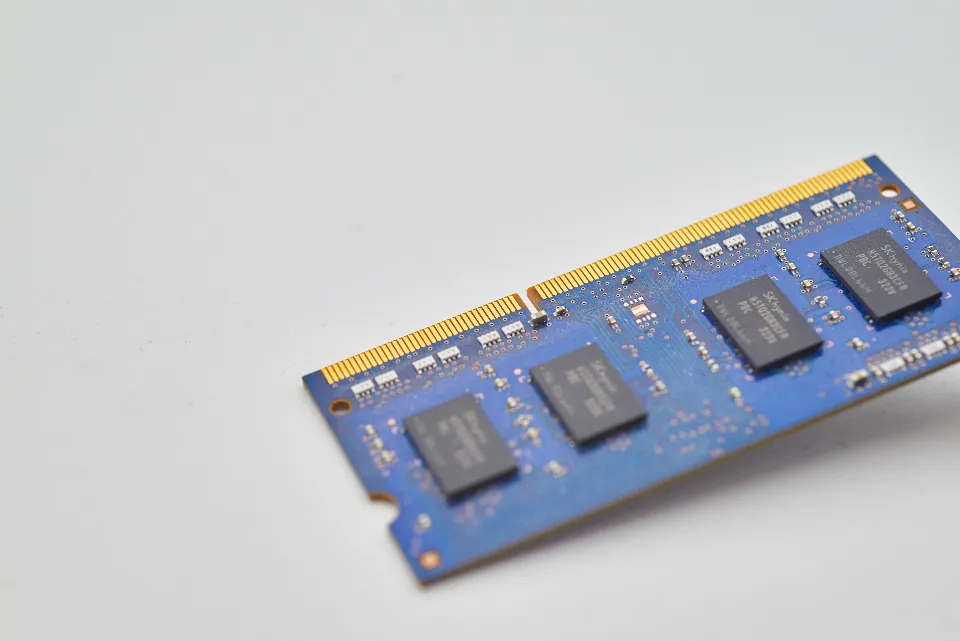
RAM determines how many apps and browser tabs can run smoothly at the same time. Insufficient RAM causes a laptop to lag, even if the processor is fast enough.
RAM Size Guide
- 4 GB: enough for typing and light browsing, but Windows 10/11 will often feel slow.
- 8 GB: the ideal amount for college, office work, and online meetings.
- 16 GB: comfortable for graphic design, light video editing, programming, and running multiple applications at once.
- 32 GB and up: for heavy video editing, 3D rendering, or virtual machines.
Understand RAM Types
Laptop RAM is generally in the SO-DIMM form factor. Different generations cannot be mixed:
- DDR3/DDR3L: older laptops, generally from before 2016.
- DDR4: laptops from around 2016 through the early 2020s.
- DDR5: newer laptops.
Desktops use longer DIMM-sized RAM modules, so make sure the form factor matches.
How to check your laptop’s RAM
- Open Task Manager (Ctrl + Shift + Esc), select the Performance tab, then Memory.
- Check the total capacity, speed, and number of slots in use.
- If there are any empty slots, you can add more RAM. On some thin laptops, the RAM is soldered directly to the motherboard and cannot be upgraded.
Tips for upgrading RAM
- Match the generation and speed to the RAM already installed.
- For best performance, install two modules of the same capacity (dual channel).
- Turn off the laptop and unplug the charger before opening the bottom cover.
Upgrading RAM from 4 GB to 8 GB often makes an older laptop feel like new for everyday use.

Written by
Tim Digitize Store
The Digitize Store team: technicians and digital product makers helping you choose and use technology well.