
Forgetting the MikroTik admin password is a fairly common problem, especially in neighborhood network (RT/RW Net) or hotspot setups where the router was installed by a previous technician and no one wrote down the password. Here’s the important news right off the bat: MikroTik’s official documentation does not provide a way to recover the password without resetting the router. So the most realistic approach is to reset the router and then restore the configuration from a backup. That’s what this guide covers, complete with warnings to help you avoid losing more data than necessary.
Check First Before Resetting
A reset erases the entire configuration. Therefore, first make sure there’s no other option:
- Are there other users? Try logging in with another account that a technician might have created previously—for example, an account with full group privileges. From that account, you can change the admin password via the System > Users menu.
- Is the router still in its default configuration? On some models, the user
adminhave no password. On other models, the password is on a sticker on the device’s body. - Do you have any records? Check your password manager, the technician’s notes, or the installation handover documents.
- Do you still have a backup file? Save the file first
.backupor.rsclatest files on your laptop first. This will determine whether recovery will be easy or if you’ll have to start from scratch.
If all else fails, proceed with the reset.
Warning: Protected RouterBOOT
If the Protected RouterBOOT feature is enabled, the reset button and reset jumper pin are disabled, Netinstall is disabled, and serial access to RouterBOOT is blocked. MikroTik states in its documentation that if you do not know the RouterOS password under these conditions, the device cannot be restored using standard methods. The only option is to reformat the router by holding down the reset button while powering it on for a specified duration (default is 20 seconds), which permanently erases RouterOS and all configurations, requiring the router to be reinstalled via Netinstall.
So, if your router is secondhand and the reset button has no effect at all, this feature is likely enabled.
Method 1: Reset via the Physical Button
This is the most common method for RouterBOARD routers such as the hAP series.
- Unplug the router’s power cable.
- Press and hold the reset button (a small hole labeled “reset,” usually next to the ports or on the bottom).
- Plug the power cord back in while continuing to hold the button.
- Wait for the LED (usually the USR LED) to start blinking, then release the button.
- The router will reboot with its default settings. The old password will be deleted.
Be aware of one thing: if you keep the button held down until the LED stops flashing, the router will enter Netinstall mode (reinstallation of RouterOS), rather than a configuration reset. MikroTik’s documentation explains the sequence of these modes based on LED behavior, without specifying the duration in seconds for the configuration reset mode. Therefore, pay attention to the light, not the number of seconds.
Some older models use a jumper: cover the reset jumper hole with a metal screwdriver while the router is booting until the configuration is erased, then remove it.
Method 2: Reset via WebFig or Winbox (if you can still log in)
This method is for a different situation: you can still log in, but want to clear the router’s configuration. The option is located under System > Reset Configuration.
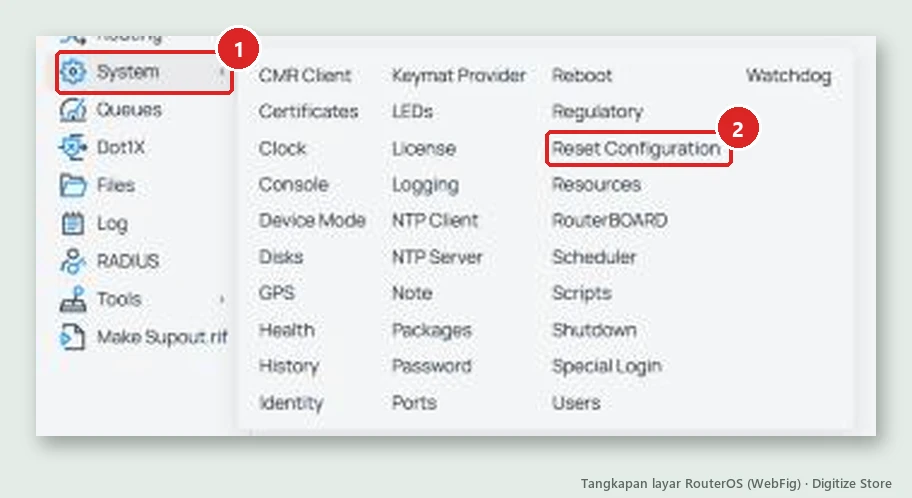
The reset page offers several options:
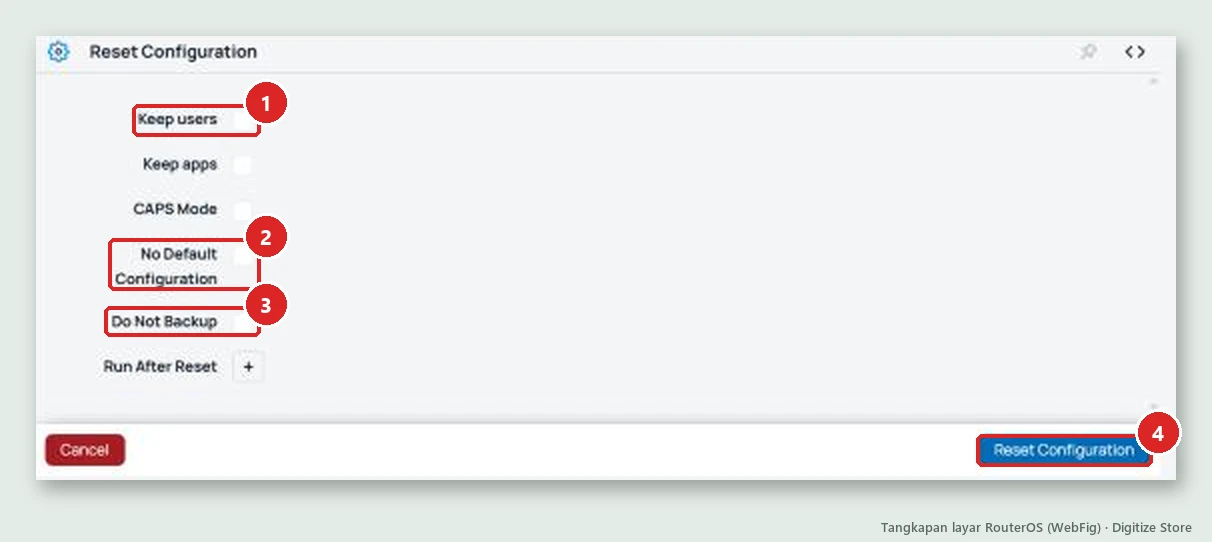
- Keep users: Does not delete existing users.
- Keep apps: retains installed applications.
- CAPS Mode: Runs the CAPsMAN mode script after the reset.
- No Default Configuration: The router is reset to factory settings without any default configuration.
- Do Not Backup: Does not create an automatic backup before the reset. Leave this unchecked to create a backup.
- Run After Reset: Run a specific file
.rscafter a reset.
When resetting via the menu or a command, RouterOS saves an automatic backup before the reset (example filename auto-before-reset.backup). Always copy that file to your laptop before doing anything else.
Method 3: Netinstall (if the reset button doesn’t work)
Netinstall reinstalls RouterOS from a laptop via an Ethernet cable. This method formats the router’s storage, so all configurations and files are lost except for specific options you select. The router’s license is not deleted. Netinstall includes a Keep old configuration option, but the documentation doesn’t clearly state how passwords are handled, so don’t rely on it if you’ve forgotten your password. Assume the router will be a clean install.
After the reset: Re-access the router
By default, the router is usually accessible at 192.168.88.1 with the username “admin,” either without a password or using the password printed on the sticker for certain models. Connect your laptop to a LAN port (not the internet port), then open Winbox or WebFig. MikroTik’s documentation also notes that some devices cannot be accessed via ether1 in the default configuration for security reasons.
The first mandatory step: create a strong new password, then write it down in a safe place.
Restoring the configuration from a backup
MikroTik supports two types of backup files:
| Type | Content | Notes |
|---|---|---|
| .backup | Binary copy of the configuration | Recommended to be restored on the same RouterOS version. Can be encrypted with a password. |
| .rsc (export) | Human-readable text script | Does not contain user passwords, certificates, or certain other data. Can be edited and imported. |
To restore from .backup, upload the file to the Files menu (or drag it into the Winbox window), then select Restore. The router will restart after the restore.
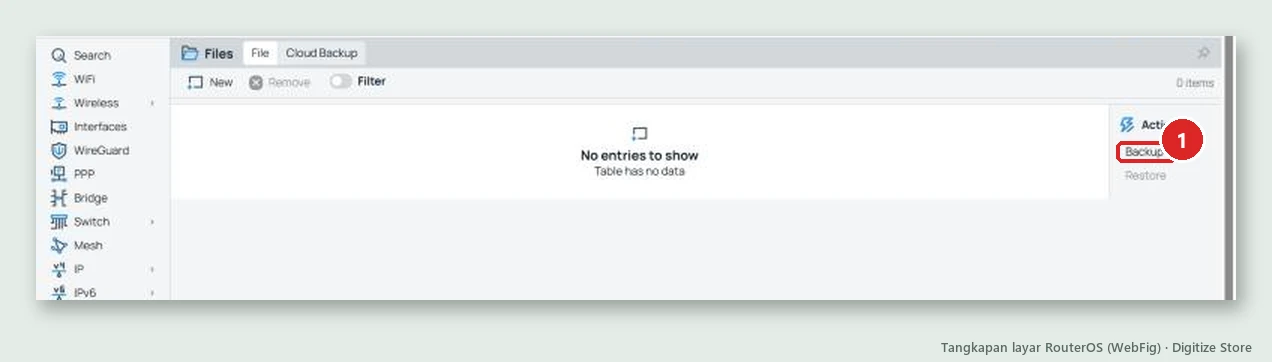
A few things to be aware of:
- Old passwords may be restored. A backup is a copy of the router’s configuration. The documentation does not explicitly state whether user accounts are included, so do not make any assumptions. After restoring, check the user list under System > Users and ensure you have access before logging out.
.rsc” files do not include passwords. After importing, you must reset user passwords.- RouterOS versions should match. Restoring across versions or models can cause problems. The documentation recommends using the same version.
- Backups can be encrypted. If created with a password, you’ll need to enter it during the restore.
For hotspots and RT/RW Net, remember that the hotspot folder (login template) is a separate file. After the router is restored, re-upload the template by installing the MikroTik hotspot login template if that folder was not restored.
Preventing Forgotten Passwords from Happening Again
- Store the admin password in a password manager, not in your head or on a piece of paper that could get lost.
- Create a backup user with full privileges and store it separately.
- Schedule regular backups and save them off the router. See how to back up MikroTik configurations.
- Also save the latest .
.rscexport as a readable backup. - Note the RouterOS version and model on each backup file.
- Follow these 7 basic steps to secure your MikroTik router so that access isn’t easily compromised.
Conclusion
A forgotten MikroTik admin password cannot be recovered. The only options are to reset the router using the reset button, the Reset Configuration menu, or Netinstall, and then restore the configuration from a backup. The key to minimizing damage lies in two things: having a recent backup before the problem occurs, and verifying the username and password after the restore. If the router uses Protected RouterBOOT, note that a restore will result in a complete wipe. The official guide can be found in the RouterOS documentation on configuration reset and Configuration Management.
Frequently Asked Questions
Is it possible to bypass the MikroTik password without a reset?
The official MikroTik documentation does not provide a method for doing so. The only methods described are a configuration reset or a reformat for routers with Protected RouterBOOT.
Does a reset delete the RouterOS license?
No. MikroTik documentation states that Netinstall does not delete the license key, and a configuration reset only clears the configuration. What is lost are the settings and files on the router.
The reset button isn’t working—why?
It’s possible that the Protected RouterBOOT feature is enabled, or you didn’t notice the LED in time, so you held the button down too long and the router entered Netinstall mode. Try again while paying attention to the LED’s blinking pattern.
Which is better to restore: a .backup file or an .rsc file?
The .backup is more comprehensive but should ideally be used on the same version of RouterOS. The .rsc is more flexible and can be edited, but it does not include user passwords. Ideally, save both.
Will the hotspot and voucher data be restored?
Hotspot users stored in the configuration will be restored if the configuration is restored. The login template files are in a separate folder, so make sure you have a copy of them as well.