


For many college students, a new laptop with adequate specs feels too expensive. On the other hand, inexpensive new laptops often feature flimsy plastic casings, uncomfortable keyboards, and slow storage. This is where used ThinkPads become a choice frequently recommended by technicians: business laptops designed to last for years in an office setting are now available at much more affordable prices.
This article discusses why used ThinkPads are a good fit for college students, the differences between each series, which processor generations are still worth considering, and a checklist to help you make the right choice.
Why Are Used ThinkPads Ideal for College Students?
A Sturdy Build for Daily Use
ThinkPads are designed for employees who travel frequently. The hinges, frame, and keyboard are generally more durable than those of consumer laptops in the same price range. This is important for students who carry their laptops every day from their dorms to campus.
A comfortable keyboard for typing
College students write many reports, papers, and theses. ThinkPad keyboards are known for their comfort and optimal key travel, so typing for hours on end doesn’t get tiring quickly.
Easy to maintain and upgrade
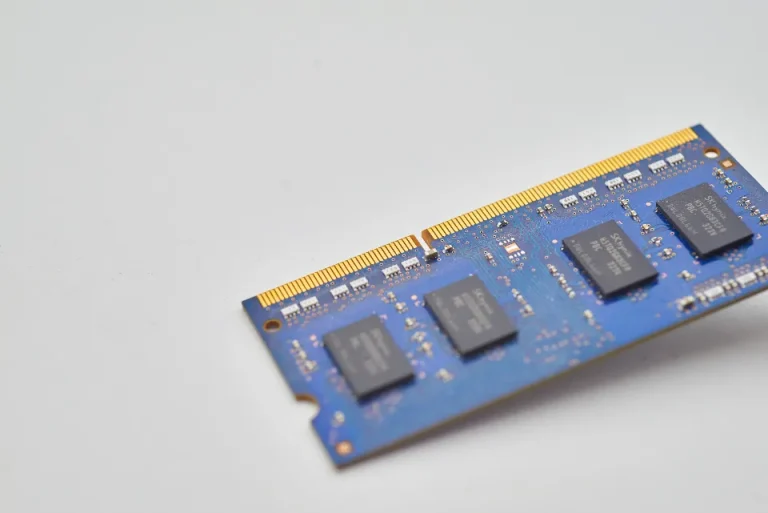
Many ThinkPad models make it easy to replace the SSD, RAM (on certain models), and battery. Replacement parts are also relatively easy to find, keeping maintenance costs under control.
Prices are significantly lower than new models
Business laptops lose a lot of their resale value once their lease or office use ends, even though they’re often still in excellent condition. This is what makes used ThinkPads such a great value.
Getting to Know the ThinkPad Series
| Series | Characteristics | Best for |
|---|---|---|
| T (e.g., T480, T490, T14) | Well-rounded: sturdy, comfortable, good performance | Suitable for almost all majors—the safest choice |
| X (e.g., X280, X390) | Compact and lightweight, 12–13-inch screen | Students who travel very frequently |
| L (e.g., L480, L490) | More affordable, slightly thicker | Students on a tight budget |
| E (e.g., E14) | Entry-level business class | Light everyday use |
| Yoga | Foldable, touchscreen display | College students who like to take notes on the screen |
The serial number usually indicates the year of manufacture. For example, the T480 is newer than the T470, and the T490 is newer than the T480.
A processor generation that’s still viable
For today’s students, pay attention to the processor generation, not just the Core i5 or i7 label. Newer-generation Core i5 processors are much more powerful and energy-efficient than older-generation Core i5s.
- 8th generation and up (e.g., Core i5-8250U, i5-8365U): a very solid choice. They have 4 cores, making multitasking much smoother than with previous generations.
- Generations 6–7: still sufficient for typing, browsing, and online meetings, but only if the price is significantly lower.
- Older generations: not recommended for long-term college use, especially if you need Windows 11.
Ideal specifications for college students
- 8 GB of RAM is the standard. Opt for 16 GB if you’re majoring in computer science, design, or architecture. A full explanation can be found in the article “How Much Laptop RAM Is Enough?”
- At least 256 GB SSD. The SSD is the component that most significantly affects everyday performance.
- A Full HD (1920 × 1080) display if possible, as text is sharper for reading journals and documents.
- Complete set of ports: USB, HDMI for presentations, and, if available, USB-C for charging.
You can read recommendations for specifications by major in the article “Laptop Specifications for College Based on Your Major.”
Checklist before buying a used ThinkPad
1. Battery condition
Generate a battery report in Windows using the command powercfg /batteryreport, then compare the Full Charge Capacity with the Design Capacity. A value below 60% indicates that the battery’s capacity has significantly decreased. The full steps are detailed in the article on how to check a laptop battery’s health.
2. SSD Health
Use an app like CrystalDiskInfo to check the storage status. The expected status is “Good.”
3. Screen
Display solid-color images—white, black, red, green, and blue—to check for dead pixels, spots, or lines.
4. Keyboard and TrackPoint
Test all keys, including the function keys. Also test the TrackPoint (the red button in the center of the keyboard) and the touchpad.
5. Hinge and Body
Open and close the screen several times. The hinges should feel tight and not make any noise. Check the corners of the body for cracks caused by a fall.
6. Ports and Connectivity
Test each USB, HDMI, audio, Wi-Fi, and Bluetooth port.
7. Temperature and Fans
Play a video or keep several browser tabs open for ten minutes. An excessively loud fan or an extremely hot body indicates that the device needs cleaning.
8. Accessories and Warranty
Make sure the charger matches the required power rating and choose a seller who offers a warranty. A more comprehensive checklist can be found in the article on how to choose a good used laptop.
Tips After Purchase
- Update Windows and drivers from the manufacturer’s official website.
- Install the manufacturer’s built-in system update application to safely update the BIOS and drivers.
- Take care of the battery by avoiding excessive heat and using the correct charger.
- Clean the fans every one to two years, especially in dusty environments.
Frequently Asked Questions
Can a used ThinkPad still run Windows 11?
It depends on the processor generation. Officially, Windows 11 generally supports Intel processors from the 8th generation onward. Therefore, the 8th generation is a safe choice.
Which series is most recommended for college students?
The T Series is the most balanced choice for most students. The X Series is a good fit if you prioritize a lightweight design, while the L Series is suitable for those on a tighter budget.
Is a used ThinkPad suitable for graphic design?
For light design and presentations, a ThinkPad with 16 GB of RAM and an SSD is sufficient. For heavy design, video editing, or 3D rendering, consider a laptop with a dedicated graphics card.
How long will a used ThinkPad last?
With proper care, a used ThinkPad from the right generation can last through several years of college. Replacing the battery and SSD later on can extend its lifespan.
Conclusion
A used ThinkPad is a smart choice for college students who want a durable laptop that’s comfortable to type on and easy to maintain—all at an affordable price. Choose a series that suits your needs, prioritize an 8th-generation or newer processor, 8 GB of RAM, and an SSD, then check the condition of the battery, screen, keyboard, and hinges before buying. Buying from a seller who offers a warranty makes your investment much safer.

The Digitize Store team: technicians and digital product makers helping you choose and use technology well.