

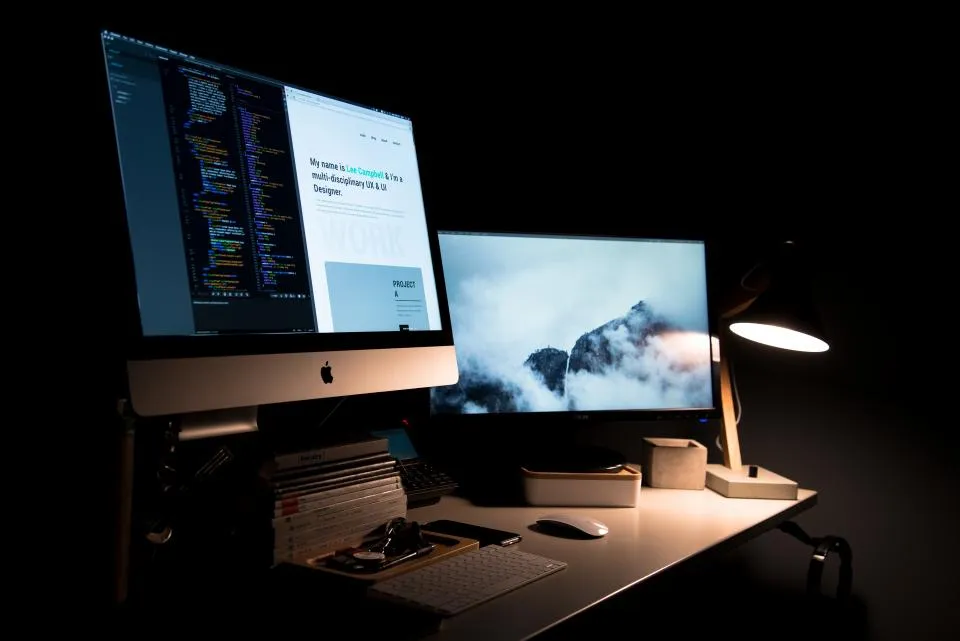
Working with two screens makes it easier to compare documents, participate in meetings while taking notes, or process data. Setting them up is also easy.
Get to know the ports on your laptop
- HDMI: most common on laptops and monitors.
- DisplayPort / Mini DisplayPort: common on business laptops.
- USB-C: On some laptops, the USB-C port supports video output (there’s usually a DisplayPort or Thunderbolt symbol nearby).
- VGA: an older port, still found on some monitors and projectors.
If the laptop and monitor have different ports, use the appropriate cable or adapter.
Setting up the display in Windows
Press Windows + P to select a mode:
- Duplicate: the same screen on both monitors—ideal for presentations.
- Extend: the screen is extended, ideal for working with multiple windows.
- Second screen only: only the external monitor.
Adjust the position and resolution in Settings → System → Display.
Tips for choosing a work monitor
- A 22–24-inch size with Full HD resolution is comfortable for most tasks.
- An IPS panel offers better color and viewing angles.
- A refresh rate of 75–100 Hz makes cursor movement feel smoother.
- Make sure the necessary cables are included in the package.

Written by
Tim Digitize Store
The Digitize Store team: technicians and digital product makers helping you choose and use technology well.