

The MikroTik “Walled Garden” hotspot is a feature that’s often needed but also frequently misconfigured. By default, MikroTik Hotspot blocks all internet access until users successfully log in. That is, after all, the purpose of a hotspot: only paying or registered users should be able to use the internet. However, there are sometimes websites that need to remain accessible before login, such as the admin’s WhatsApp button for purchasing vouchers or payment sites. This is where Walled Garden comes into play.
This guide covers the Walled Garden feature, when it’s needed, examples of secure configurations, and how to test the results.
What Is a Walled Garden?
A Walled Garden is a list of exceptions. URLs added to this list can be accessed by devices that haven’t logged into the hotspot yet. In MikroTik, there are two types of configurations:
- IP → Hotspot → Walled Garden: based on domain name (Dest. Host), for HTTP and HTTPS traffic.
- IP → Hotspot → Walled Garden IP List: based on IP address and port, for all types of traffic.
For most needs, the domain-based Walled Garden is sufficient.
When is a Walled Garden needed?
- A WhatsApp admin chat button on the login page, so potential customers can ask questions or purchase vouchers before logging in.
- Your own payment page or voucher sales site.
- School, college, or institutional websites that can be accessed without logging in, such as information portals or e-learning platforms.
- Template assets from the internet, such as fonts or images from a CDN. It’s best to store all assets on the router, but if that’s not possible, the domain must be allowed.
Example settings for the WhatsApp admin button
To make the WhatsApp button on the login page work, go to IP → Hotspot → Walled Garden, click +, then add an entry with Action: allow for the following Destination Hosts:
wa.me*.whatsapp.com*.whatsapp.net
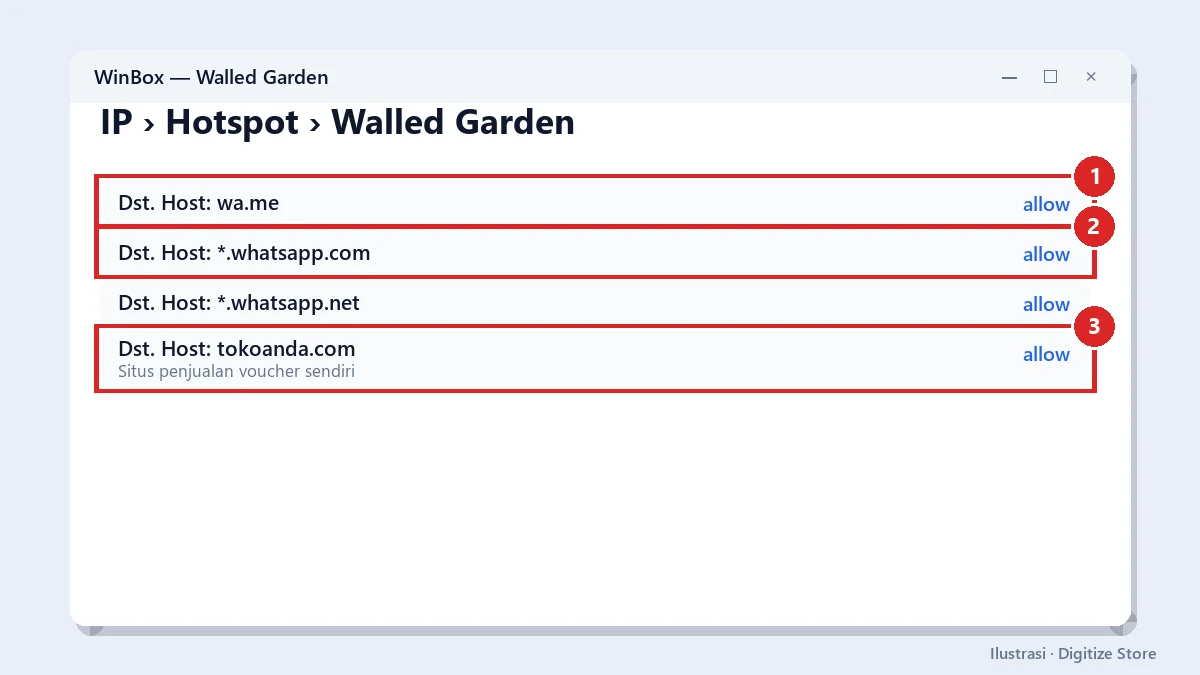
Or via the terminal:
/ip hotspot walled-garden
add dst-host=wa.me action=allow
add dst-host=*.whatsapp.com action=allow
add dst-host=*.whatsapp.net action=allow
For your own site, simply add namadomain.com and *.namadomain.com.
Example for schools
Schools can allow the school’s official website and learning portal so that students can still access important information even if they haven’t logged in:
/ip hotspot walled-garden
add dst-host=sekolahanda.sch.id action=allow
add dst-host=*.sekolahanda.sch.id action=allow
Student login settings are covered in the section on well-managed school hotspots.
Things to Avoid
- Do not allow overly general domains such as
.google.com,.facebook.com, or*.youtube.com. Users can access these services for free, and automatic login page detection on mobile devices may fail because the device assumes an internet connection is already available. See “Hotspot login page does not appear.” - Limit the number of entries. Each entry increases the verification load on the router.
- Double-check after updating the template. New templates may load assets from other domains.
- Do not use Walled Garden as a substitute for a firewall. To block sites for logged-in users, use firewall rules or DNS filters.
How to ensure the settings are working
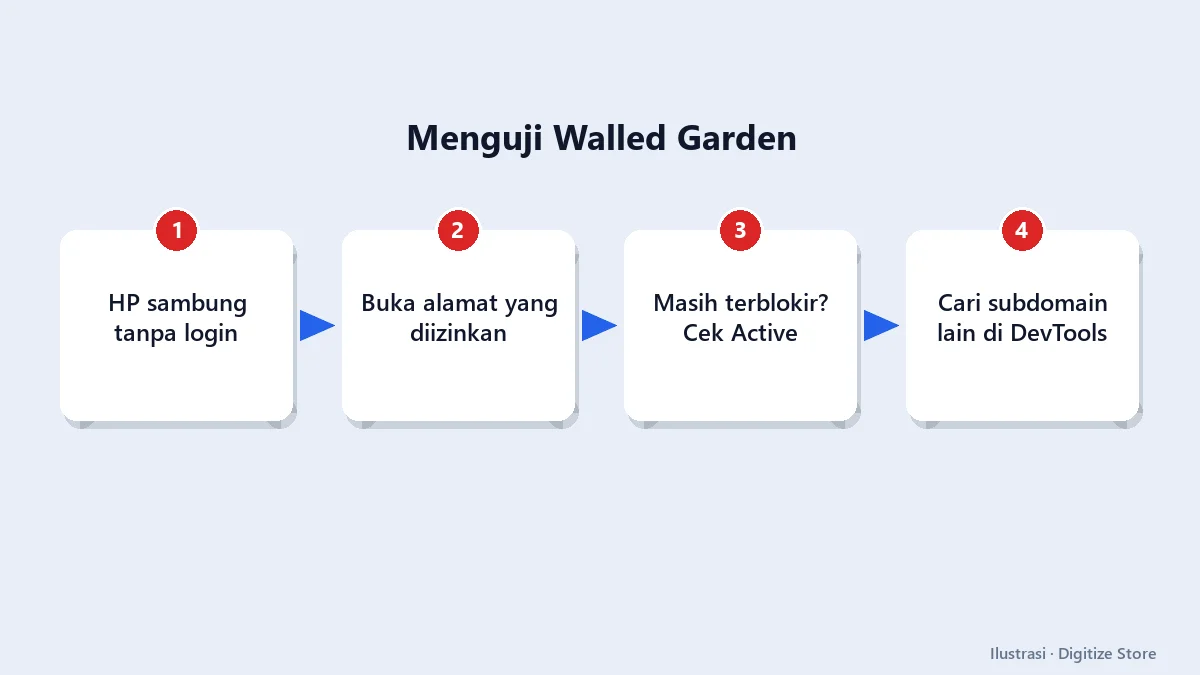
- Connect your phone to the hotspot without logging in.
- Open an allowed URL—for example, tap the WhatsApp button on the login page.
- If it’s still blocked, check IP → Hotspot → Active to confirm the phone hasn’t logged in yet.
- Check if the site uses other subdomains. Open the site on your laptop, press F12, then look at the Network tab to see which domains are being called.
- Add any missing domains, then test again.
Walled Garden and login templates
A good login template stores all files (images, CSS, fonts, JavaScript) on the router, so it doesn’t require a Walled Garden to display properly. The only external services that need to be allowed are those like WhatsApp or payment pages.
Learn how to install a template in How to Install a MikroTik Hotspot Login Template and discover its benefits in 5 Benefits of a Custom Hotspot Login Template.
Walled Garden IP List for Special Needs
Some services cannot be configured based on domain, such as devices connected via a direct IP address or a specific port. For this, use IP → Hotspot → Walled Garden IP List:
/ip hotspot walled-garden ip
add dst-address=192.168.88.10 action=accept comment="server lokal sekolah"
Example of use:
- Local servers, such as computer-based testing (CBT) servers in schools, that must be accessible without a hotspot login.
- Shared network printers.
- Payment devices or cash registers that use a static IP address.
Use the IP List with caution. IP-based entries allow all traffic to that address, so they are only suitable for your own servers and devices, not general internet services. Complete documentation on hotspot features can be found in the official MikroTik documentation.
Frequently Asked Questions
Why can’t I open the WhatsApp button? It’s possible that a different WhatsApp domain is being accessed, or your phone is opening the WhatsApp app via a different server. Add *.whatsapp.net and test again.
Does Walled Garden make the hotspot insecure? No, as long as only specific domains are allowed.
Can Walled Garden be used for sponsored ads? Yes, for example, by allowing sponsored sites to appear on the login page.
Conclusion
Walled Garden allows specific addresses to be accessed before logging in, such as the WhatsApp admin, payment pages, and school websites. Allow only specific domains, avoid general domains, and test from a phone that hasn’t logged in yet. With proper configuration, the login page feels complete and professional without leaving any loopholes for unauthorized access. Check out the Digitize Store hotspot login template with a ready-to-use WhatsApp button.